meldrumjon.github.io
Open Terminal Shortcut in macOS
How to create a keyboard shortcut to open a new terminal at your current Finder location. Like Ctrl+Alt+T / Alt+T in some Linux distros.
Automator App
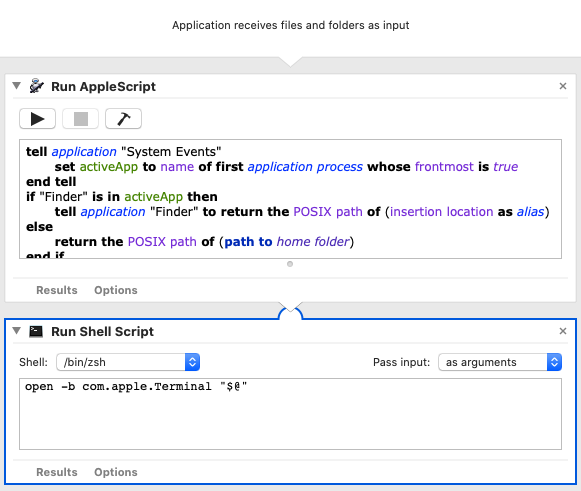
Open Automator and create a new Application. Add the following actions:
-
Run Applescript:
tell application "System Events" set activeApp to name of first application process whose frontmost is true end tell if "Finder" is in activeApp then tell application "Finder" to return the POSIX path of (insertion location as alias) else return the POSIX path of (path to home folder) end if -
Run Shell Script:
open -b com.apple.Terminal "$@"- Make sure “Pass input” is set to “as arguments”
Save the Application as “Open Terminal Shortcut.app” and place it in your Applications or Utilities folder.
These actions could go directly in the Automator Quick Action (see below); however, if you place them in the quick action, the foreground Application running when you launch the service will need “access to control” System Events and Finder. That may be fine, if you only use the service while using Finder, but if you launch it when any other app is open, you will need to grant these permissions for each new app. It is far more convenient to create a separate app and grant the permissions only once.
Automator Quick Action
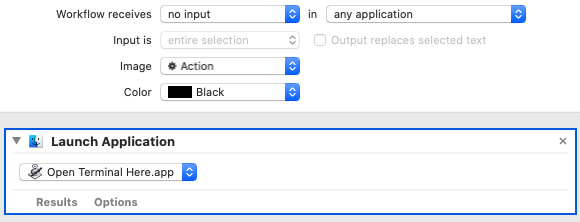
With Automator, create a new Quick Action. Simply:
- Launch Application: “Open Terminal Shortcut.app”
Save the Quick Action as “Open Terminal Shortcut”.
Assigning a Keyboard Shortcut
In System Preferences -> Keyboard -> Shortcuts under Services -> General, assign a shortcut for “Open Terminal Shortcut”. I used Ctrl + Alt + Cmd + T.